Learn › Module 6 of 6
The app, screen by screen
Everything in the previous modules, applied. Read this with the app open in your hand: each section tells you what you are looking at and what to do with it.
1. Install and choose the build
- Android APK — from the download page or the official GitHub releases. Verify the SHA-256 published there before installing anything.
- Zapstore — for users who prefer a store with signature verification. The link is on the download page.
- Web / PWA —
app.btcblake2b.orgworks in a browser, and there the encrypted seed lives inlocalStorage. Fine for trying the interface, not recommended for real funds (module 3, §4).
The app has no accounts: nothing to sign up for, nothing to log into. The first screen asks for the minimum legal information (country, age, terms) and then offers to create or import a wallet.
2. Your first ten minutes
- Create a wallet, choose the account type (native segwit is the default and the best choice unless you have a reason), give it a name.
- Write down the twelve words on paper, then complete the verification step. Do not skip it: a backup you have not tested is a hope, not a backup.
- Enable app lock (Settings → Security) if your device supports biometrics.
- Receive a small amount to the address the app proposes. Watch it arrive as pending, then as confirmed.
- Send a part of it back out (to yourself on another wallet, if you have one). Look at the fee summary, the change output and the confirmation count.
- Open the in-app guide (Settings → About & info → How it works) and read the chapters that match what you just did.
Test with the minimum — every flow in this app is learned faster with the smallest possible amount. Do not put a meaningful balance in until you have received and sent once.
3. Home
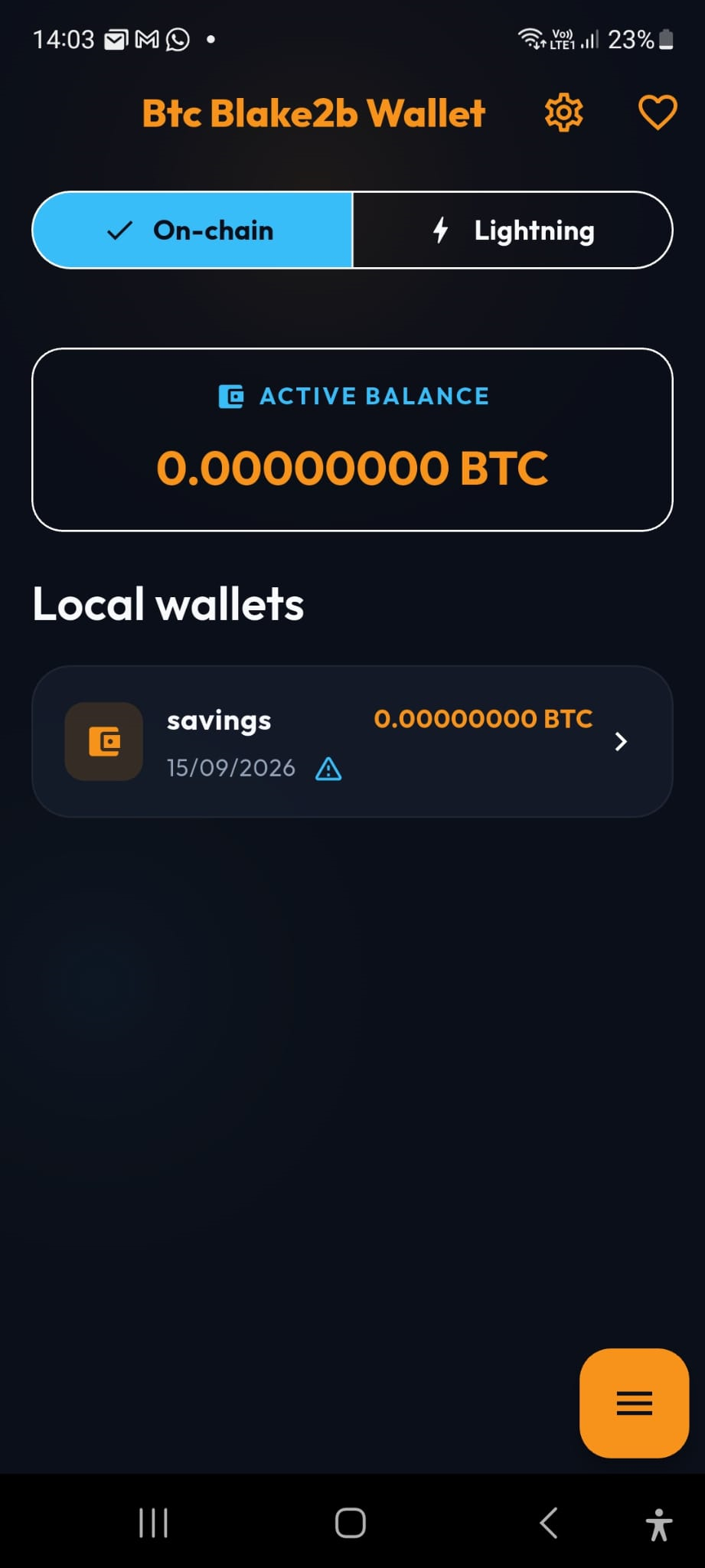
- Wallet cards — one per wallet, with its balance. A tap opens the detail; a long press starts selection mode (rename, hide from the total, delete).
- Total balance — the sum of the wallets you chose to display. While it loads you see a placeholder, never a fake zero.
- On-chain / Lightning switch — the app has two layers. On-chain is the wallet described in modules 2–4; Lightning is module 5. They are separate balances connected by channels or swaps.
- Empty state — with no wallets yet you get three actions: create, import, and How it works, which opens the same guide that lives in Settings.
- Top-right icons — Settings and donations. Everything else lives inside Settings (no hidden menus).
4. Wallet detail
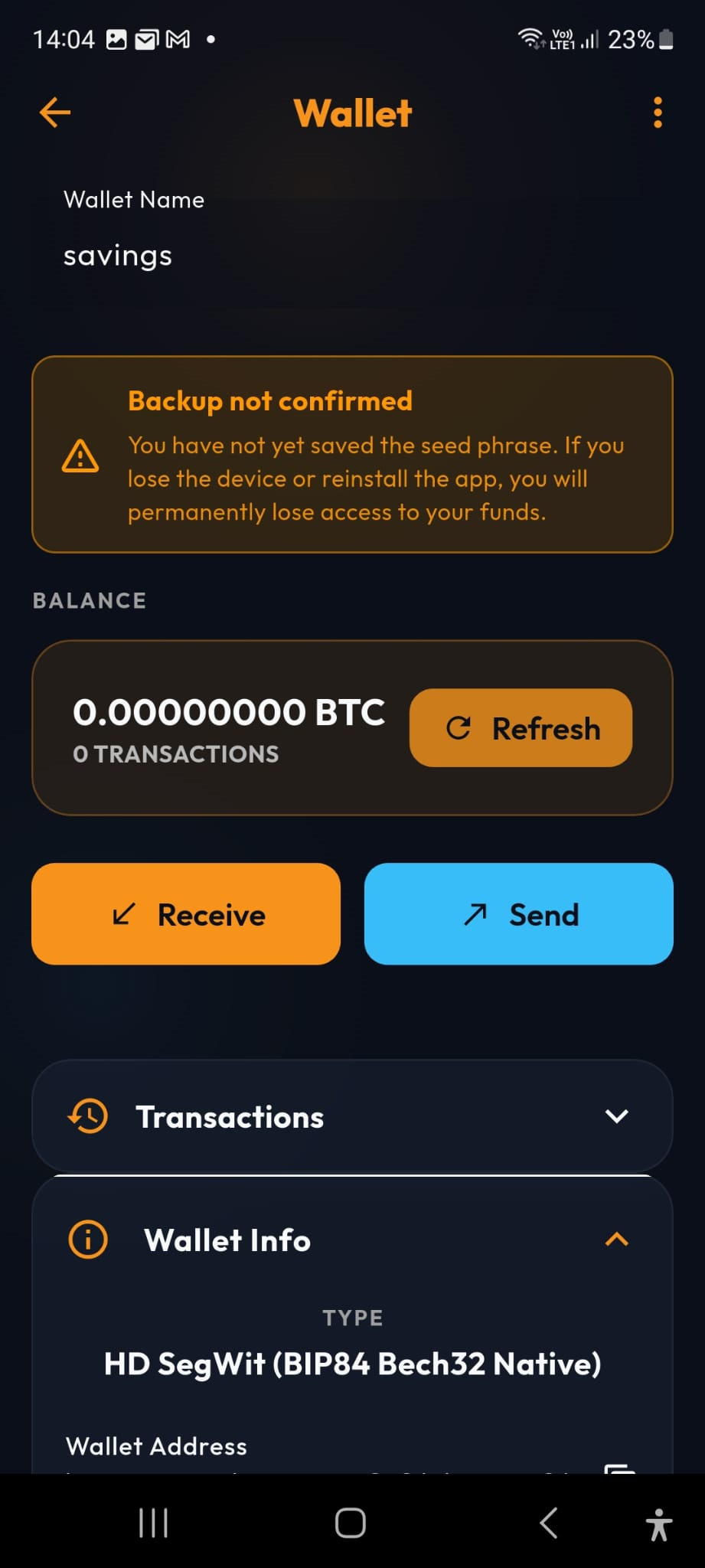
- Balance card — refresh pulls the current state from the API. Pending amounts are shown separately: they are not missing, they are waiting.
- Receive / Send — the two primary actions. Both go through a review step.
- History — each transaction shows direction, amount, fee, confirmations and block height. A tap opens the details, notes and the fee-bump action when the transaction is replaceable.
- Addresses — the full list of derived addresses with their derivation path, branch (receive/change) and on-chain state. This is where you see that a wallet is not "one address".
- UTXOs / coin control — the individual pieces of your balance (module 2). You can label them and choose which ones to spend.
- Advanced — xpub, master fingerprint, derivation path, sign/verify message, export of the history (CSV/JSON).
5. Sending
The send screen is a wizard in one page. Read it top to bottom:
- Destination address — paste it or scan a QR. Always compare the first and last characters with the source you copied from.
- Amount — with a "max" helper that keeps enough for the fee. Amounts below 546 sat cannot be sent (dust).
- Fee — choose low, normal, high or custom. The summary below shows the estimated fee in sat and the rate in sat/vB, the amount, and the total. The fee is paid for bytes, not for amount (module 2).
- Coin control (optional) — pick which UTXOs to spend. Use it to avoid merging UTXOs you would rather keep separate, or to spend a small piece without touching the rest.
- Batch send (optional) — up to 20 recipients in a single transaction, sharing the fee instead of paying it once per transfer. Every recipient is listed in the confirmation.
- Review and confirm — the app shows a final sheet: address, amount, fee, total. This is your last chance; a signed transaction is irreversible.
If you underpay, the transaction sits in the mempool. Open it from the history and use bump fee (RBF) to replace it with a version that pays more — the recipient and amount stay the same.
6. Receiving and addresses
- Receive always proposes a fresh address, with a QR code and a copy button. Take the fresh one: it is the cheapest privacy measure you will ever apply (module 4).
- Addresses lists the receive branch (what you show to others) and the change branch (where your own change returns). Both belong to the same wallet; seeing the change branch does not mean you have extra funds.
- Address types — native segwit (BIP84), nested segwit (BIP49) and legacy (BIP44). Pick native unless a counterparty only understands an older format; the app shows the prefix it expects for the current network.
- Waiting funds — a received UTXO appears as unavailable until it has confirmations. The app tells you how many blocks are missing.
7. Watch-only, PSBT, sign & verify
- Watch-only — import an xpub to see a wallet without being able to spend from it (module 2, §7). Ideal for monitoring a device you keep offline. Remember: the xpub is a privacy key (module 4).
- PSBT — Partially Signed Bitcoin Transactions. Another device or person builds a transaction, you sign it here (or vice versa) without ever exposing your seed. The app supports scanning the PSBT as a QR, signing it, and exporting the result.
- Sign / verify message — prove that an address is yours, or check that a message really came from a given address, without moving any funds. Useful for support claims and provenance.
- Export history — CSV or JSON of the transactions of a wallet, for your own records or for a tax advisor.
8. The Lightning tab
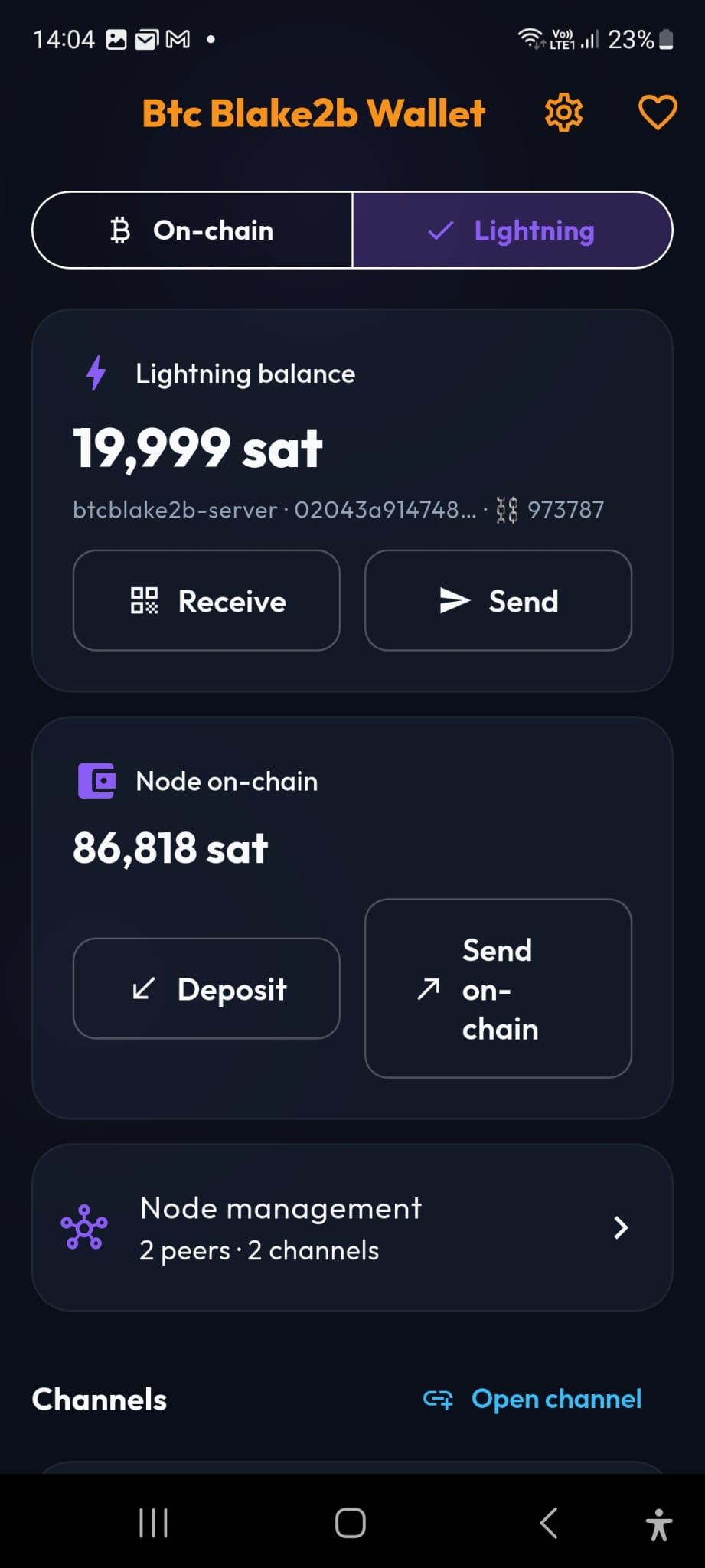
- Connect a node — paste the connection string produced by your node installer (see the node page). The app becomes a remote control: keys and funds stay on your machine.
- Balances — on-chain funds of the node vs Lightning funds inside channels. They are different things (module 5).
- Channels — list with capacity, your side, the peer's side, reserve and status. Open, close (cooperative) and force close live here, with explanations attached to each term.
- Receive / Send — invoices and keysend. Receiving needs inbound liquidity: a fresh channel has none.
- Deposit / Withdraw — move funds between the node's on-chain wallet and its channels.
- Swaps — pay a Lightning invoice without a node, via a provider (module 5, §6). Experimental: read the warnings in the flow.
9. Settings and the in-app guide
- Security — app lock with biometrics. The switch is disabled if no biometric is enrolled, and explains why.
- Appearance — theme and language (8 languages).
- Interface — Info hints: the little ⓘ dots next to the technical fields. Turn them off once you know the app; turn them back on when you need a reminder.
- Tools — the block explorer view, and Explorer mirrors: keeping the fallback on means three possible providers instead of one (module 4, §4).
- About & info — How it works opens the in-app guide (the five-chapter version of this course), followed by legal information and the open-source licenses.
10. Troubleshooting
- The balance is empty or shows an error. The public API may be rate-limited or down; the app distinguishes the two. Retry in a minute; if the mirrors are off, turning them on can help.
- A payment is not arriving. Check its confirmations: 0 means pending. The fee you paid decides when it moves; if it signalled replaceability, bump it.
- The balance dropped without a payment. Look at the transaction: it is your change plus the fee, or a UTXO still waiting.
- "Funds unavailable". Those UTXOs are waiting for confirmations — they are not lost.
- The app refuses an amount. It is probably below the dust threshold (546 sat) or above the selected UTXOs' value.
- A received Lightning payment fails. Inbound liquidity: the channel cannot receive more than the peer's side can send (module 5).
- I think my phrase leaked. Create a new wallet and move the funds. There is no way to change the phrase of an existing wallet.
11. Glossary
- Address
- A one-way label derived from your keys. Publish a fresh one for every payment you receive.
- Blockchain
- The public ledger: an append-only chain of blocks, each recording transactions.
- Change
- The part of your UTXOs that returns to you on a new address after a payment.
- Confirmation
- One block added on top of the block containing your transaction.
- Dust
- An output too small to be worth spending (below 546 sat here): the network rejects it.
- Mempool
- The waiting room of unconfirmed transactions; its congestion sets the fee market.
- PSBT
- A transaction that is built but not yet signed, portable between devices.
- RBF
- Replace-By-Fee: replacing a pending transaction with one that pays a higher fee.
- sat
- The smallest unit (1 coin = 100 000 000 sat).
- Seed / recovery phrase
- Twelve words that regenerate all your keys. The real wallet.
- UTXO
- An unspent output: one "banknote" of your balance.
- xpub
- The public key that generates all your addresses. See-only, never spend.
Takeaway — The app is one screen per concept: home for the overview, detail for the wallet, send/receive for the two actions, addresses and UTXOs for what a balance really is, Lightning for channels. Learn with small amounts, keep the recovery phrase offline, and use the ⓘ dots until the words feel normal.